Phase 1 — Cinco de Mayo Push
Launch today through Tuesday, May 5. Three days of full-throttle urgency.
Pre-Launch Verification
0 / 5These are already done from earlier — quick visual confirmation before you start clicking.
Pixel firing on bartendermarketing.com
Confirmed via Meta Pixel Helper — green check, PageView event live. No action needed.
Domain verified in Business Manager
bartendermarketing.com is verified.
"Promo Visitors" Custom Audience created
Audience populating from PageView events on bartendermarketing.com.
Promo Visitors excluded from Remarketing campaign
The live Remarketing ad set now excludes anyone who visits the promo domain. Audience separation is live.
Minimum age 21 set on Remarketing ad set
Alcohol-adjacent compliance hygiene done.
Step 1 — Campaign Settings
0 / 4Open the existing RBS SPRING FLASH SALE - CBO draft.
Rename the campaign
Open Ads Manager → click the draft campaign → click the campaign name to edit.
Confirm Special Ad Category
If a Special Ad Category dropdown is shown, select Employment. Targeting will be restricted (no detailed age/gender/ZIP narrowing) — that is expected.
Enable Advantage Campaign Budget (CBO) and set daily budget
Click Next to advance to the Ad Set level
Step 2 — Ad Set Settings
0 / 7Name the ad set
Set conversion location to Website
Performance goal: Maximize number of conversions (or Landing Page Views if standard events aren't fully wired up).
Select the Cocktail Mixer pixel
Set the schedule end date
This is the critical click — auto-pauses the ad copy stays honest.
Do NOT skip the end date. Your ad copy says 'Ends Cinco de Mayo' — Meta needs to enforce it.
Audience controls
Locations: Raleigh, NC area or your standard radius. Minimum age: 21. Languages: English.
Add audience exclusions
Exclude existing customers / past 30-day enrollees so you don't waste spend. Do NOT exclude Promo Visitors here — they're the target of this campaign.
Click Next to advance to the Ad level
Step 3 — Build the Ad
0 / 10Single image ad. Use Creative #2 (Lifestyle) — strongest hook + cleanest compliance.
Name the ad
Identity
Select the Raleigh's Bartending School Facebook Page. Connect Instagram if available.
Format: Single image or video
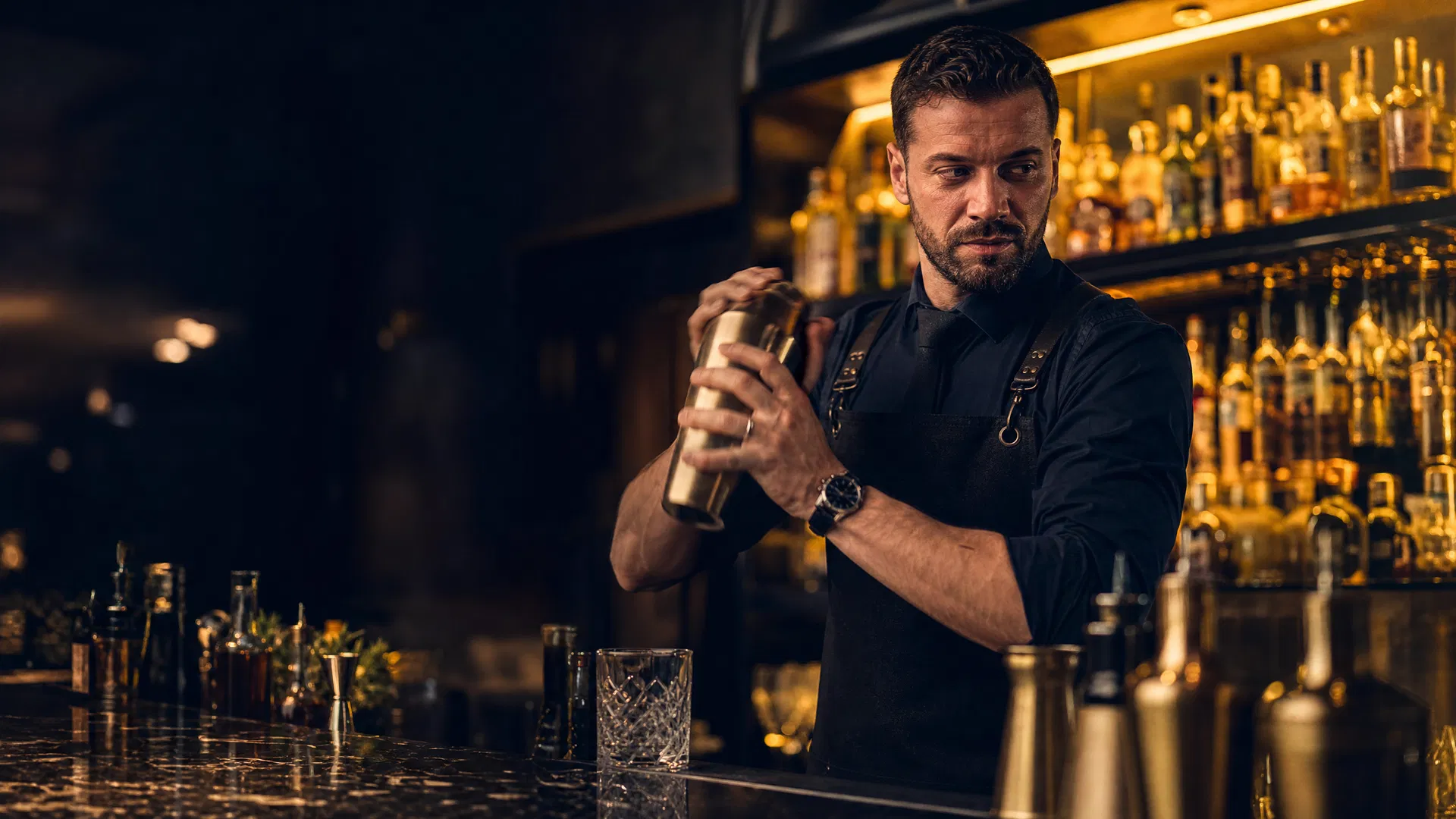
Upload Creative #2 (Lifestyle - 'Turn Your Passion Into A Paycheck'). The image is in your Ad Creative Library below.
Paste the Primary Text
Paste the Headline
Paste the Description
Set the Call to Action
For Employment-category ads, "Enroll Now" is often unavailable. "Sign Up" or "Learn More" are safe.
Paste the destination URL
Paste the URL parameters
Scroll to the very bottom of the ad editor — the field is labeled 'URL parameters'.
Verify the ad preview
Check the right-hand preview panel: image renders, headline + description visible, CTA button shows 'Sign Up', destination URL ends with bartendermarketing.com.
Step 4 — Review & Publish
0 / 3Click Publish
The Review draft items dialog will appear. Confirm the count is small — only items belonging to this campaign should be checked.
Wait for review status
Campaign enters 'In Review' state — typically 15 min to 12 hours for Employment-category ads.
Confirm delivery within 24 hours
Open Ads Manager and verify Impressions > 0. If still 0 after 24h, check for policy rejection (badge appears next to ad).
Ad creative library
Click to enlarge · upload to Meta in the Ad Creative stepThree approved creatives, ranked by recommended use. All point to bartendermarketing.com.